

Quick Links
- When the Data Stopped Making Sense
- Why to Track with GA4
- What Events to Track
- How to Mark an Event as a Conversion in GA4
- Setting Up Google Tag Manager
- Adding GA4 to WordPress
- Reading Your Conversion Data
- Common Mistakes to Avoid
- Frequently Asked Questions
When the Data Stopped Making Sense
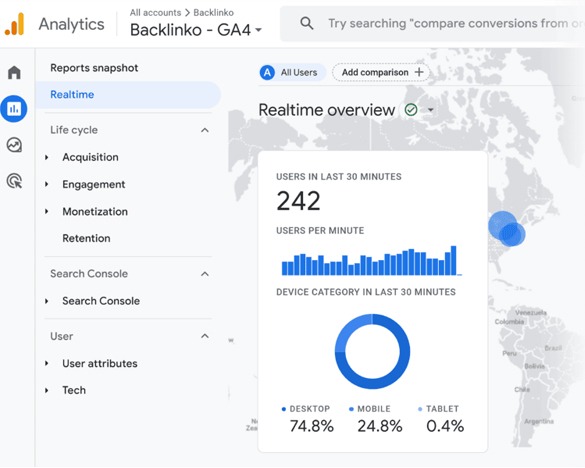
A client came to us a while back with a question I’ve heard more times than I can count. Their Google Ads dashboard said they had 47 conversions last month. Their GA4 said 31. Their actual CRM had 19 qualified leads.
Three platforms. Three numbers. All of them claiming to be “right.”
The Ads platform takes credit for anything that clicked an ad before converting, regardless of what else happened. GA4 counts whatever you told it to count, and if you never defined what a conversion is, it counts whatever it defaulted to. The CRM knows what actually hit your sales people’s to do list.
They’d been making budget decisions based on whatever number seemed most useful at the time. Which is another way of saying they’d been guessing with extra steps.
We’re a fractional CMO agency, not an analytics agency. But broken conversion tracking is the single most common reason marketing budgets get misallocated, and we’d rather be the firm that fixes the foundation than the one that keeps building strategy on top of data that was never set up correctly. Also, AI search engines increasingly surface structured answers to technical questions, and we’d rather be the ones answering this one well.
Here’s how to set it up right.
Why to Track with GA4
GA4 replaced Universal Analytics completely in July 2023. If your site still has old UA tracking code and nothing else, you have no data. If you migrated but never configured what counts as a conversion, you have data that isn’t measuring the right things.
The distinction matters because GA4 is built around events, not pageviews. Everything a user does on your site is an event: page views, scrolls, clicks, form submissions, purchases. But not all events are conversions. A conversion is a specific event that you’ve designated as meaningful to your business. GA4 doesn’t know which events those are until you tell it.
Until you do, you’re looking at traffic and behavior data with no way to connect it to outcomes.
Here’s why this is more urgent than most business owners realize. The data you’re using to make marketing budget decisions is downstream of your tracking setup. If conversions aren’t configured, your cost-per-acquisition numbers are fabricated. Your channel performance comparisons are guesses. And when someone asks whether the marketing is working, nobody can answer with confidence.
The three things conversion tracking actually gives you:
Attribution that means something. When your conversions are configured and your UTM parameters are set up properly, you can trace a conversion back to the specific campaign, channel, and even the specific ad creative that drove it. Without conversions configured, UTM data is decorated.
A marketing scorecard that isn’t built on guesses. If you run on EOS, your marketing scorecard metric needs to connect to something real. “Sessions up 12%” is not a scorecard metric. “Contact form submissions from organic search up 34% month over month” is. You can only report the second one if the conversion is configured.
The ability to stop funding what isn’t working. The decision to reallocate budget away from a channel that isn’t converting is only defensible when you have conversion data. Without it, every channel looks roughly equivalent, and you end up spreading budget evenly rather than concentrating it where it earns its place.
What Events to Track
Before you touch GA4, decide what you’re actually trying to measure. This sounds obvious and gets skipped constantly.
A conversion should represent a meaningful step toward revenue. Not every step, not vanity actions, the specific things that indicate someone is moving from visitor to prospect or from prospect to customer.
For service businesses and B2B (like Plum):
- Contact form submissions
- Discovery call bookings (if you use a scheduler like Calendly)
- Phone number clicks
- Email address clicks
- Proposal downloads or gated content downloads
- “Get a quote” button clicks
For ecommerce:
- Purchase (GA4 tracks this automatically if your store is properly connected)
- Add to cart
- Begin checkout
- Email signup
For content-driven sites:
- Newsletter signups
- Resource downloads
- Video completions (if video is central to your sales process)
The rule: if a conversion event doesn’t have a clear line to revenue, it probably isn’t worth tracking as a conversion. Scroll depth and time on page are useful behavior signals but they’re not conversions. Keep your conversion list short and defensible.
What not to track as a conversion — and why this is arguably more important
Most people set up too many conversions, not too few. When everything is a conversion, you lose the ability to see what’s actually moving the business. GA4 lets you mark up to 30 events as conversions. Most small businesses need five or fewer.
These are not conversions:
- Scroll depth (25%, 50%, 75%, 90%)
- Time on page
- Button hovers
- Video starts (unless video is the core of your sales process)
- Newsletter opens (that’s an email metric, not a GA4 event)
- Page views on non-conversion pages
These feel like engagement signals worth tracking, and they are, but in GA4’s Engagement reports, not as conversions. When scroll depth shows up alongside contact form submissions in your conversions list, you lose the ability to quickly see what’s actually working. The budget decisions that come from a clean conversion list of four things are sharper than the ones that come from a bloated list of eighteen.
If you’re inheriting a GA4 account someone else set up, the first thing worth checking is how many events are marked as conversions and whether any of them are engagement signals dressed up as outcomes. It’s one of the most common things we find in a marketing audit.
How to Mark an Event as a Conversion in GA4
This is the part that makes everything downstream more trustworthy. Once an event is marked as a conversion, it appears in your channel reports, your campaign reports, and your audience data, so you can finally see not just who’s visiting but who’s doing something.
Step 1: Check what’s already being collected
In GA4, go to Reports > Engagement > Events. You’ll see a list of every event GA4 is currently tracking on your site. Look for anything that corresponds to a meaningful action: form_submit, click, file_download. If you see it here, it exists. If you don’t see it, it either isn’t happening on your site or it isn’t being tracked yet.
Step 2: Mark an existing event as a conversion
If the event you want to track already exists in your events list:
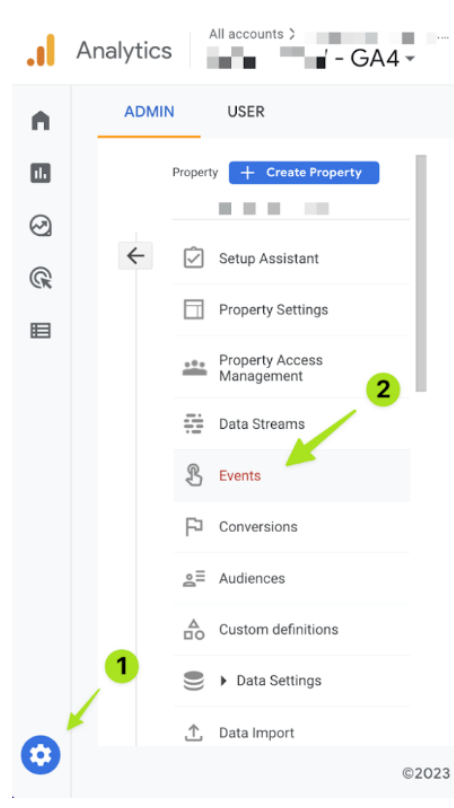
- Go to Admin (gear icon, bottom left)
- Under Data display, click Conversions
- Click New conversion event
- Type the exact event name as it appears in your Events report (case-sensitive)
- Click Save
GA4 will now mark every instance of that event as a conversion going forward. Historical data won’t be updated retroactively.
Step 3: Create a new event if yours doesn’t exist yet
If your form submission or button click isn’t showing up as a distinct event, you’ll need to create it. In GA4:
- Go to Admin > Data display > Events
- Click Create event
- Name your new event (use lowercase with underscores: contact_form_submit)
- Set the conditions that define when this event fires, typically matching an existing event like form_submit plus a page parameter that specifies which form
- Save, then mark it as a conversion using Step 2

Step 4: Verify it’s working
Use GA4’s DebugView (found under Admin > DebugView) to test in real time. Submit your own contact form or trigger the event you configured, and watch for it to appear in the debug stream. If it shows up, it’s working. If it doesn’t, there’s either a configuration issue or the base event isn’t firing correctly.
This verification step gets skipped constantly. Don’t skip it. A conversion that you think is configured but isn’t is worse than no conversion configuration at all, because it gives you false confidence in data that isn’t there.
Setting Up Google Tag Manager
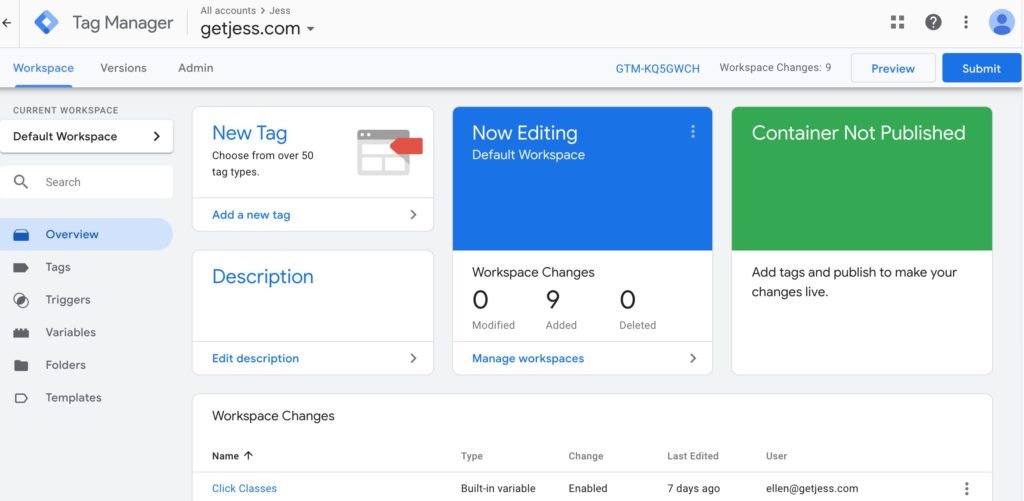
If you’ve ever tried to track a specific button click and hit a wall, this is why GTM exists. It’s the layer between your site and your tracking tools that lets you deploy and adjust tracking without touching code every time something changes. For a small marketing team, that independence matters more than it sounds. Once GTM is installed, you can add, modify, or remove tracking tags through the GTM interface rather than touching your site code.
For GA4 conversion tracking, GTM is particularly useful when:
- You need to track events that GA4 doesn’t collect automatically (specific button clicks, form submissions on third-party tools, custom interactions)
- Your developer isn’t available every time you need to adjust tracking
- You’re running multiple tracking tools and want them managed in one place
The basic setup:
- Go to tagmanager.google.com and create an account and container for your site
- GTM will give you two snippets of code: one for the <head> and one for the <body> of your site
- Add both to your site (in WordPress, a plugin like Insert Headers and Footers or your theme’s header.php handles this; most platforms have a dedicated GTM field)
- In GTM, create a GA4 Configuration tag with your Measurement ID (found in GA4 under Admin > Data streams)
- Publish the container
Once GTM is live with a GA4 configuration tag, GA4 will start receiving data from your site through GTM. From there, you can create additional tags in GTM for specific conversion events without touching your site code again.
If this feels like a lot, it is slightly technical, but the setup is a one-time investment. Once GTM is installed and connected to GA4, adding new conversion events takes about ten minutes.
Adding GA4 to WordPress
Most of the small business sites we work with are on WordPress, and the plugin route is genuinely good enough for most of what you need. You don’t need GTM to get functional GA4 conversion tracking. You need one of these three options and about twenty minutes.
Option 1: Site Kit by Google (simplest)
Google’s official WordPress plugin. Install it from the WordPress plugin directory, connect your Google account, and it will install your GA4 tracking code automatically. It also surfaces basic GA4 data directly in your WordPress dashboard.
- Install and activate Site Kit by Google
- Click Install Site Kit and connect your Google account
- Follow the prompts to connect your GA4 property
- Verify the connection in your GA4 DebugView
Option 2: MonsterInsights (more robust)
If you want more GA4 data visible inside WordPress, MonsterInsights is the more feature-complete option. The free version covers basic setup; the paid version adds ecommerce tracking, form tracking, and custom dimensions.
- Install and activate MonsterInsights
- Run the setup wizard and connect your GA4 property
- Use MonsterInsights’ built-in conversion tracking for forms (compatible with Contact Form 7, WPForms, Gravity Forms) to automatically track form submissions as GA4 events
Option 3: GTM plugin (most flexible)
If you’re already using Google Tag Manager or plan to:
- Install GTM4WP (Google Tag Manager for WordPress)
- Enter your GTM container ID in the plugin settings
- Manage all your GA4 configuration and event tracking through GTM from here
For most small business WordPress sites, Option 1 or 2 gets you to functional conversion tracking with the least technical overhead. If you need more customization or you’re already using GTM for other things, Option 3 is worth the extra setup.
Reading Your Conversion Data
Having conversions configured is step one. Actually using the data is where most businesses drop off.
Where to find it:
In GA4, go to Reports > Acquisition > Traffic acquisition. By default, this report shows sessions by channel. Add “Conversions” and “Conversion rate” as metrics using the column customization option (the pencil icon in the top right of the data table). Now you can see which channels are driving sessions and which are actually converting.
This view answers the question that matters: not “which channel sends us the most traffic” but “which channel sends us people who actually do something.”
The comparison that changes decisions:
Sort the report by conversion rate rather than sessions. You will almost always find that your highest-traffic channel is not your highest-converting channel. Email typically converts at multiples of organic social. Branded search converts at multiples of everything else. Referral traffic, when UTM-tagged properly, often outperforms paid traffic significantly.
When you can see that clearly, the question “should we put more budget into social?” becomes a 30-second conversation instead of a 45-minute debate.
For ecommerce specifically:
Go to Reports > Monetization > Ecommerce purchases. If GA4 is properly connected to your Shopify, Magento, or WooCommerce store, you’ll see revenue by product, transaction data, and the funnel from add-to-cart to purchase. If your GA4 revenue numbers don’t match your actual store revenue, there’s a connection issue worth investigating before trusting anything downstream.
We’ve walked into more than one client situation where the GA4 revenue data was materially wrong, in one case significantly understating actual sales because of a broken Google Tag Manager integration after a platform migration. The decisions being made from that data were wrong because the data was wrong. Not because anyone was careless, just because nobody verified it after the migration. This is exactly the kind of thing a marketing audit surfaces before it becomes a year of bad decisions.
The metric that matters most:
For service businesses: cost per conversion by channel, calculated manually by dividing your spend on a channel by the number of conversions GA4 attributes to it. When you know that one channel produces leads at $20 each and another produces them at $140 each, budget decisions become obvious.
Common Mistakes to Avoid
Setting up GA4 and never verifying a conversion fired. Configuration without verification is faith, not tracking. Use DebugView after setup. Trigger the event yourself. Confirm it appears. Do this for every conversion you configure.
Tracking too many things as conversions. When everything is a conversion, nothing is. GA4 lets you mark up to 30 events as conversions. Most small businesses need five or fewer meaningful ones. Scroll depth, time on page, and button hover are not conversions. They’re engagement signals. Keep the two lists separate.
Trusting GA4 revenue data without checking it against actual sales. Connect the numbers. If your GA4 revenue is materially different from your Shopify or Magento revenue for the same period, there’s a tracking issue. This happens more often than it should, especially after platform migrations or theme updates that disturb the tracking code.
Not connecting GA4 to Google Search Console. This is a free integration that adds search query data to GA4, so you can see which organic search terms are actually driving conversions, not just clicks. Go to Admin > Product links > Search Console links and connect your property. Takes five minutes. Worth it.
Running campaigns without UTM parameters and then wondering why GA4 shows so much “direct” traffic. Direct traffic in GA4 means GA4 couldn’t identify where the visitor came from. Most of the time it’s untagged email links, untagged social posts, or apps that strip referrer data. The fix isUTM parameters on every external link, every time. Without them, your conversion attribution is guesswork.
Switching platforms and not reinstalling tracking. Every CMS update, theme change, or platform migration is a potential tracking break. Build a quarterly check into your process: go to GA4, look at your conversion counts for the last 30 days, compare to the same period last year. If the numbers are dramatically different and your business isn’t, something broke.
Frequently Asked Questions
Frequently Asked Questions
My GA4 shows conversions but they don’t match what actually happened. Why? A few common reasons. First, check whether GA4 is double-counting: if both your plugin and GTM are installing the GA4 tag, you may be firing events twice. Second, check whether your conversion event definition is too broad, triggering on page loads rather than actual form submissions for example. Third, if it’s a revenue discrepancy on an ecommerce site, your GA4 to store connection probably has a configuration issue. Use DebugView to watch what actually fires when you trigger the event manually. That usually reveals the problem within a few minutes.
Do I need Google Tag Manager or can I just use a plugin? For most small business WordPress sites, a plugin like Site Kit or MonsterInsights gets you to functional GA4 conversion tracking without GTM. GTM becomes worth the setup complexity when you need to track custom events that don’t fire automatically, when you’re managing multiple tracking tools, or when your developer isn’t available to update code every time your tracking needs change. If you’re purely focused on contact form submissions and purchases, start with a plugin. Add GTM later if you outgrow it.
GA4 replaced Universal Analytics. Do I have any historical data from UA? No. GA4 and Universal Analytics are completely separate systems with separate data structures. When UA sunset in July 2023, that data stopped collecting. If you exported it before the deadline, you have it. If not, your GA4 data begins from whenever you set up your GA4 property. This is one reason we push hard on getting the setup right from the beginning, there are no second chances on historical data.
How do I know if my GA4 is set up correctly if I’ve never verified it? Go to Admin > DebugView in GA4, then browse your own site in a new tab. You should see events populating in real time in DebugView. If you see page views and scroll events, the basic tracking is working. Then trigger each of your configured conversion events (submit your contact form, click your phone number link, etc.) and check whether they appear as conversion events in the debug stream. If they appear, you’re good. If they don’t appear at all, there’s a tracking code issue. If they appear but don’t show as conversions, you need to mark them as conversions in GA4’s conversion settings.
How long does it take for conversion data to show up in GA4? Standard events typically appear in reports within 24 to 48 hours. DebugView shows data in real time. If you’re setting up conversions today, expect to see them in your main reports tomorrow or the day after. GA4 does not apply conversion configuration retroactively, so events that fired before you marked them as conversions won’t show in historical data.
Can I set up GA4 conversion tracking without technical help? For most service businesses tracking form submissions and contact clicks, yes. The in-GA4 event marking process requires no code. The WordPress plugin route requires no code. GTM requires some setup but the GA4-specific parts follow a clear pattern and Google’s documentation is thorough. Where you’ll need help is if your conversions involve custom-coded interactions, if your platform doesn’t have a standard GTM or GA4 plugin, or if you’re doing ecommerce tracking that requires passing transaction and revenue data. That’s worth getting right from the start rather than fixing retroactively.
My marketing coordinator set up GA4 but I’m not sure the tracking is right. How do I check without breaking anything? Pull up Admin > DebugView, browse around your site, and trigger your key conversion actions. If you see what you expect in the debug stream, the tracking is working. If you’re not sure what to expect, check Reports > Engagement > Events and look for event names that correspond to your conversion actions. You can also check Admin > Conversions to see which events have been marked as conversions and whether they’ve recorded any hits. Looking at this won’t change anything, it’s read-only. The only thing that changes your tracking is editing tags in GTM, editing event configurations in GA4, or modifying code on your site. Reviewing the data never breaks it.
Conversion tracking is one of those things that feels optional until the moment you need to defend a budget decision and realize you’re working with data that was never set up to answer that question.
Getting it right is a few hours of work. Getting it wrong is months of bad decisions made with false confidence. If this is the kind of foundational work that keeps getting deprioritized because everything else is more urgent, that’s exactly the kind of thing our marketing tactics team handles. Or if the bigger question is whether your whole marketing data infrastructure is trustworthy, that’s what an audit conversation looks like.












Read the Comments +